
We’re going to summarize any given text like a pro. Think of it as turning long emails, documents, or even your cousin’s 3-paragraph WhatsApp message into a neat JSON
This is a 101-style beginner’s blog, so if you’re new to this — worry not! I’ll walk you through everything step by step, and I promise to keep it simple (with just enough geeky fun). All codes are in this repo – nextweb repo
Here’s what we’ll cover in this AI-powered journey:
- Getting access to OpenAI (a.k.a., the magical key)
- Storing your API key securely in a
.envfile (no hardcoding, please!) - Making your first API call to GPT-4 (spoiler: it’s easier than you think)
- Tweaking the API call parameters to get different results (AI has moods too!)
By the end, you’ll have a basic yet functional AI summarizer app built with Streamlit and OpenAI, ready to wow your friends or at least make your reading list more manageable.
Let’s get building! 🛠️✨
Prerequisites
- Any IDE you like – I’m using PyCharm, but go with whatever makes you feel like a coding wizard.
- Python 3.5+ – Download it free from python.org if you don’t already have it.
- A bit of excitement – because building with AI should be fun!
Open API Key
- Head over to https://platform.openai.com/
- Sign up or log in.
- Click on “Start Building” and set up an organization (usually just your name, unless you’re building Skynet)
- Follow the prompts to generate your shiny new API key – copy it and keep it safe (like your College days Facebook password)

Setting Up Your Project Environment
- pip install openai streamlit python-dotenv
- create .env and app.py file.
- Add api key and model details in .env file
OPENAI_API_KEY=sk-proj-xxxxx
OPENAI_API_MODEL=gpt-4o-mini
Create app.py and use OpenAI
from openai import OpenAI
import streamlit as st
import os

from dotenv import load_dotenv, find_dotenv
_ = load_dotenv(find_dotenv())

client = OpenAI(
  api_key=os.environ['OPENAI_API_KEY'])
llm_model=os.environ['OPENAI_API_MODEL']

def get_completion(prompt, model=llm_model):
    messages = [
        {"role": "system", "content": "Act like a text summarizing tool, give response in json which key 'summary' "},
        {"role": "user", "content": prompt}]
    response = client.chat.completions.create(
        model=model,
        messages=messages,
        temperature=0,
    )
    return response.choices[0].message.content
When you call the GPT model, you’re basically starting a chat. To keep things structured, you pass it a list of messages. Each message has a role and some content. Here’s what the roles mean:
role: "system"
Think of this as setting the stage. You’re telling the AI how to behave. In our case, we say:
“Act like a text summarizing tool and respond in JSON with a key called ‘summary’”
It’s like giving the AI a job title before it gets to work.
role: "user"
This is your voice — the actual input or question you’re giving the AI. For example:
“this is my long article : <article text>”
You can think of it like this:
- The system sets the mood.
- The user kicks off the conversation.
- The AI (role:
"assistant", which comes in the response) replies based on both.
temperature – The AI’s “Creativity Dial”
- A value between 0 and 1 (technically up to 2), it controls how random or creative the AI is.
temperature=0→ Very focused, predictable, and to-the-point (great for summaries, factual stuff).temperature=1→ More creative, playful, and diverse (think poetry, brainstorming, etc).- Higher = more variation. Lower = more precision.
💡 In our summarizer app, we’re using temperature=0 to keep things tight and consistent — because you probably don’t want a haiku when you just need the key points.
Creating a Basic Streamlit App
# Initialize Streamlit UI
st.title("Chatbot Prototype")

# Display a text input box for user query
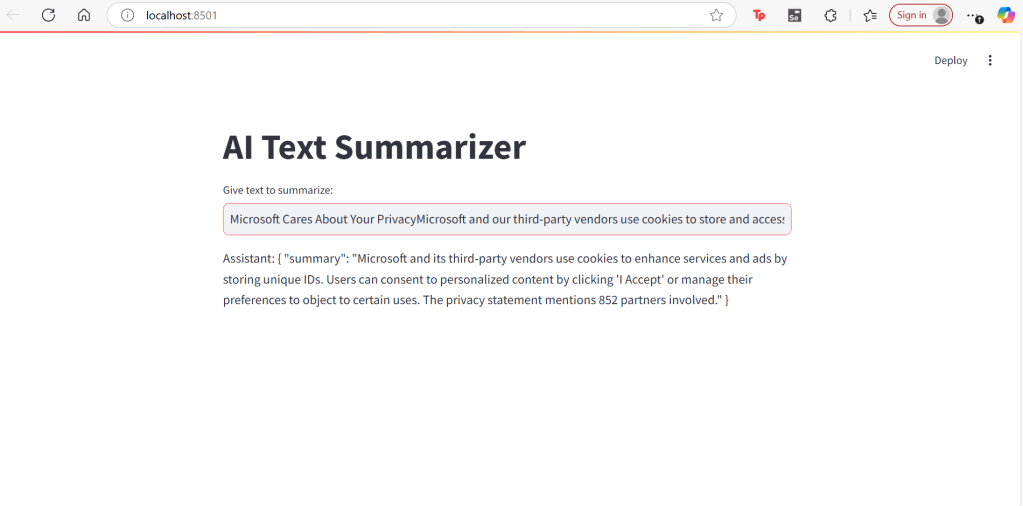
user_input = st.text_input("Give text to summarize:")

if user_input:
    # Pass the user input to the llm_chain for processing
    response = get_completion(user_input)

    # Display the chatbot's response
    st.write("Assistant:", response)
Running the App
streamlit run app.pyIf all goes well (fingers crossed 🤞), it’ll launch a nice, clean UI in your default browser — and boom, you’re ready to start playing with sample inputs and watching your AI summarizer do its thing!
Conclusion
And that’s a wrap! 🎉
You’ve just built a simple but powerful AI summarizer app using Streamlit and OpenAI. Along the way, you:
- Created a Streamlit app
- Secured and used your OpenAI API key
- Learned how message roles (
system,user) shape the AI’s response - Played with parameters like
temperatureto control the output - Parsed the response in a clean, JSON format
- you can find all code here – nextweb repo

 NextWeb Spark (Ireland)
Leave a comment