
While working as a software developer at Optum Ireland, I came across Ollama while exploring solutions for handling sensitive healthcare provider data where privacy and compliance are critical.
Ollama is a lightweight tool that allows you to run large language models (LLMs) locally on your machine — without sending any data to the internet. This makes it extremely useful for working in privacy-sensitive domains like healthcare or finance, where cloud-based AI tools are often off-limits.
Some key advantages of Ollama:
- No API Charge – open-source
- No internet needed — works fully offline
- Supports open-source models like LLaMA 3, Mistral, Gemma, and CodeLLaMA
- Easy to use — one-line install, with built-in API support (
localhost:11434)
Disadvantage:
- Significantly less powerful than Frontier models like GPT-4, Gemini 1.5, Claude 3.
I believe best way to learn any technologies or tool is to start building something meaningful. hence before going deep drive in ollama and how it do the magic under the hod, let build a summarization app which will call our local LLM LLaMA.
Step 1: Install Ollama and make local LLM model available.
- Download Ollama: https://ollama.com
- Install and start it (it runs a local server on
http://localhost:11434)
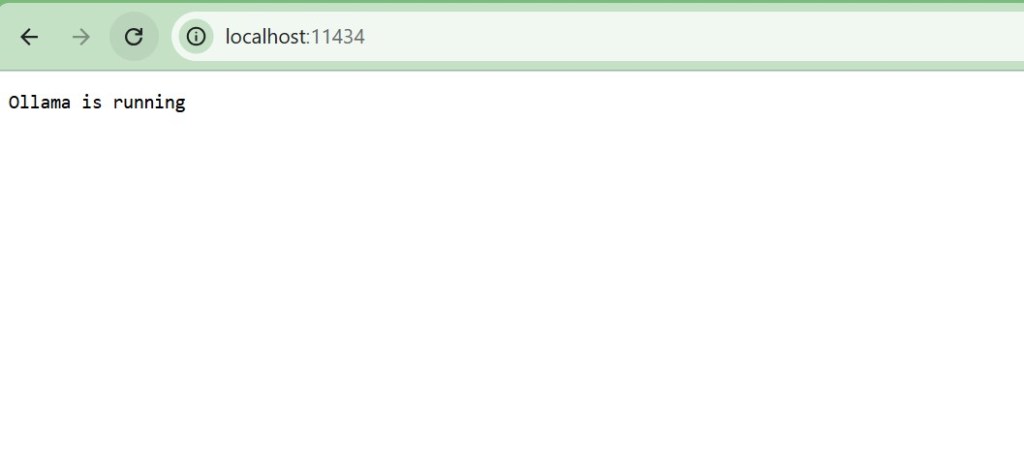
- Pull a model (e.g., LLaMA3 or Mistral)
- You can get list of all models form here https://ollama.com/search
ollama pull llama3- Test locally: – two ways run and serve mode
ollama run llama3Ollama starts a local instance of the LLaMA 3 language model and exposes it via a REST API at: http://localhost:11434
But it’s not like a server that stays running — by default, ollama run spins up the model, serves your prompt, then exits. To keep it available continuously,
ollama serveThis will keep the LLM running in the background and ready for API calls.
- Test using cURL
curl http://localhost:11434/api/generate -d '{
  "model": "llama3",
  "prompt": "What is the capital of Ireland?",
  "stream": false
}'
expected response:
{
  "response": "The capital of Ireland is Dublin.",
  ...
}
Step 2: Use Ollama for LLM API.
Direct API Usage with requests (Python)
import requests

def query_ollama(prompt, model="llama3"):
    response = requests.post(
        "http://localhost:11434/api/generate",
        json={"model": model, "prompt": prompt, "stream": False}
    )
    return response.json()["response"]
Use Ollama with LangChain
Instead of calling the Ollama API directly, you can integrate it more easily using LangChain’s built-in ChatOllama class.
⚠️ Note: Make sure Ollama is running locally (via ollama serve) before using this integration.
from langchain.chains.llm import LLMChain
from langchain_community.chat_models import ChatOllama
from langchain_core.prompts import PromptTemplate
import streamlit as st

langChanllm = ChatOllama(model="llama3", temperature=0.0)

template_string = """Translate the text \
that is delimited by triple backticks \
into {language} in style {style}. \
text: ```{text}```"""

prompt = PromptTemplate(input_variables=["text", "language", "style"], template=template_string)

translator_chain = LLMChain(llm=langChanllm, prompt=prompt)
result = translator_chain.run(language=language, text=text, style=style)
Using OpenAI-Compatible Clients
You can also make Ollama work with tools expecting the OpenAI API by setting environment variables.
import openai
openai.api_base = "http://localhost:11434"  # Ollama's default API endpoint
openai.api_key = "ignored"
response = openai.ChatCompletion.create(
    model="llama2",
    messages=[{"role": "user", "content": "Hello, world!"}]
)
print(response["choices"][0]["message"]["content"])
Note Ollama doing required any key but just to keep open ai happy we have to pass it some dummy value.
What Happens When You Use “ollama run llama3” ?
Now, before we dive into use cases and integrations with other frameworks, let’s take a closer look at what happens when you run a local LLM.
Model Fetching and Caching
- Ollama pulls the model weights (e.g. LLaMA 3) from a remote registry.
- The models are packaged in a custom format called Modelfile (like a Dockerfile for models).
- Ollama stores the model weights on your disk (usually in
~/.ollama).
Tokenization
- Input text (your prompt) is tokenized using the tokenizer of the specific model.
- Tokenizers break text into subword tokens (
"unbelievable"→["un", "believ", "able"]). – try your self here https://platform.openai.com/tokenizer
Model Inference (Local Execution)
The model runs fully on your CPU or GPU using llama.cpp, a highly optimized C++ inference engine.
llama.cpp uses techniques like:
- Quantization (e.g. Q4, Q5, Q8) to shrink model size (from 30GB → ~5GB)
- FlashAttention-style optimizations to speed up attention layers.
- Efficient memory mapping to avoid loading full model into RAM at once.
Streaming Responses
Ollama can stream tokens as they are generated, over HTTP (/api/generate) or CLI.
Integrations with Open WebUI
Open WebUI is an open-source, browser-based interface designed to work seamlessly with local LLM backends like Ollama. It offers a user-friendly, ChatGPT-style experience right in your browser, making it ideal for:
- Users who prefer a visual interface instead of working in a terminal
- Teams who want to share access to a local model with non-technical users
- Developers building prototypes or internal tools that need quick interaction with LLMs
Open WebUI acts as the frontend, providing an intuitive chat experience similar to ChatGPT.
Ollama serves the model in the backend, handling the actual text generation (LLM inference).
LiteLLM + Ollama Integration
LiteLLM is like a smart bridge between different AI models and tools that expect the OpenAI API format.
Think of it as a translator and traffic controller:
- On one side, it receives requests in the OpenAI format (like from Open WebUI or LangChain).
- On the other, it routes those requests to different backends — such as:
- ✅ Local models like Ollama
- ☁️ Cloud providers like Azure OpenAI or Amazon Bedrock
Conclusion
Ollama isn’t just for testing — it’s powerful enough to be used in real apps. It can be combined with tools like Open WebUI for a nice user interface or LiteLLM for advanced setups with other models. While it’s not built for huge-scale production, it’s great for smaller, private, or internal systems where privacy, cost, and control matter.
You don’t have to use Ollama alone — it works well with other tools. If something is missing (like a feature or cloud model), you can plug in another tool to fill the gap. The growing ecosystem of SDKs, UIs, and integrations is making Ollama a key part of building local AI apps.
In short, advanced users can use Ollama to build real, useful applications, like chatbots, coding assistants, or part of a hybrid AI stack.

 NextWeb Spark (Ireland)
Leave a comment